Five ways people actually run this app — from a store floor to a kitchen table.
1. Small business & retail teams
A shop owner signs up as Master Admin. Departments become “Front of house,” “Kitchen,” and “Events.” Staff get invited as users. They publish tastings, workshops, and shift-coverage events. Capacity limits stop overbooking. The public share link goes on the store Instagram so customers can see upcoming nights without creating an account.
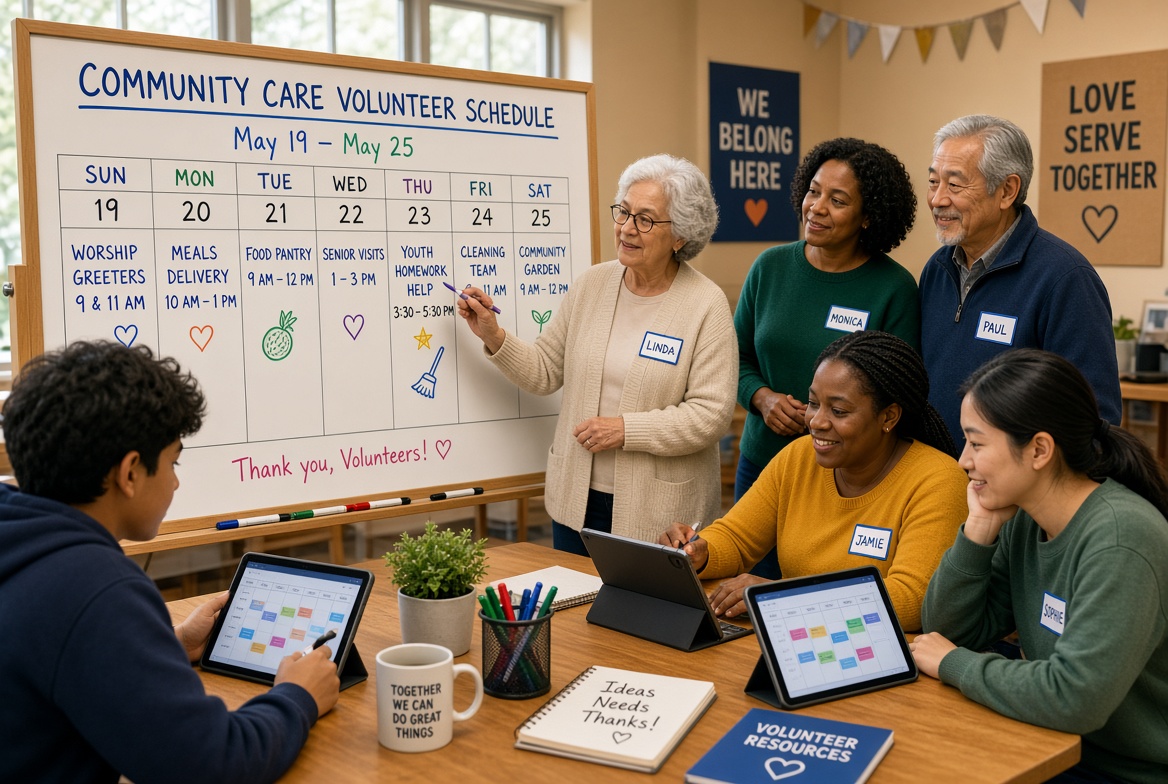
2. Churches, nonprofits & volunteer orgs
Ministries or program teams are departments. Volunteer slots are events with a cap. Waitlist auto-promotes the next person when someone cancels. Announcements sit on the calendar home. Coordinators message a single event thread instead of a group text that nobody can find later.
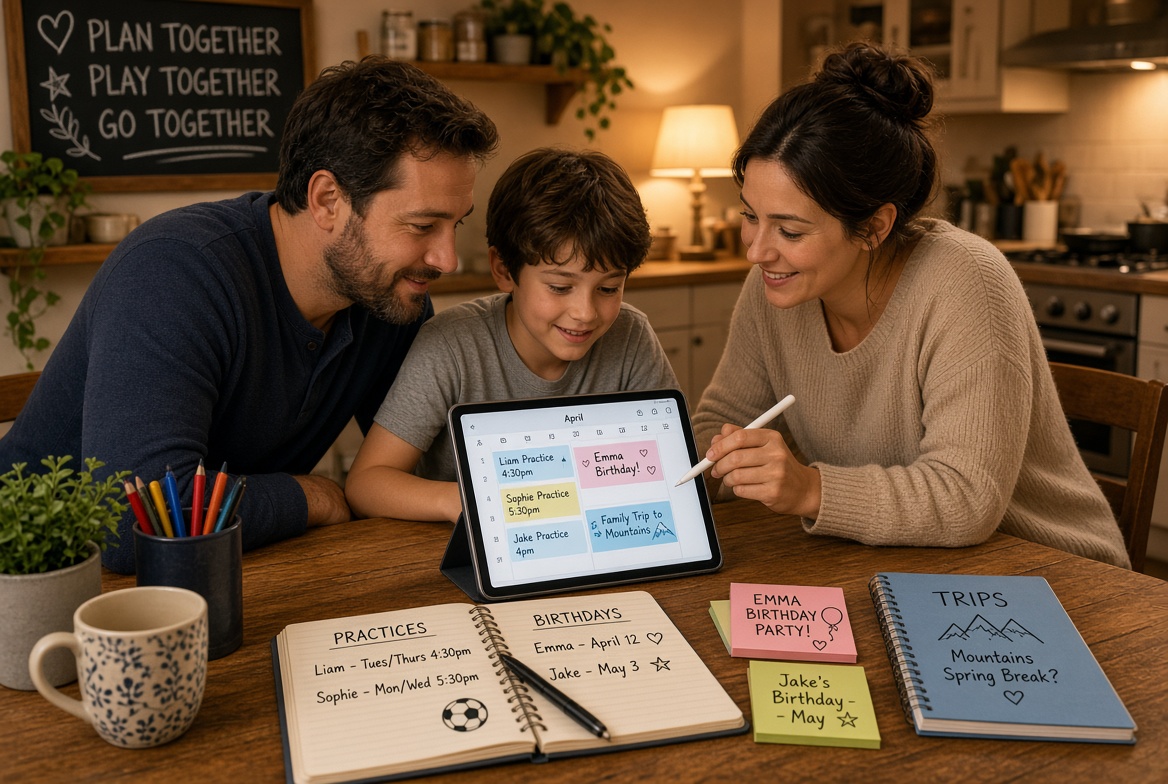
3. Families
One parent is Master Admin. Kids and grandparents are invited users. Departments can be “School,” “Sports,” and “Home.” Practices, birthdays, and trips live in one place. A private share link can go to a babysitter for the week — and get regenerated when the week is over.
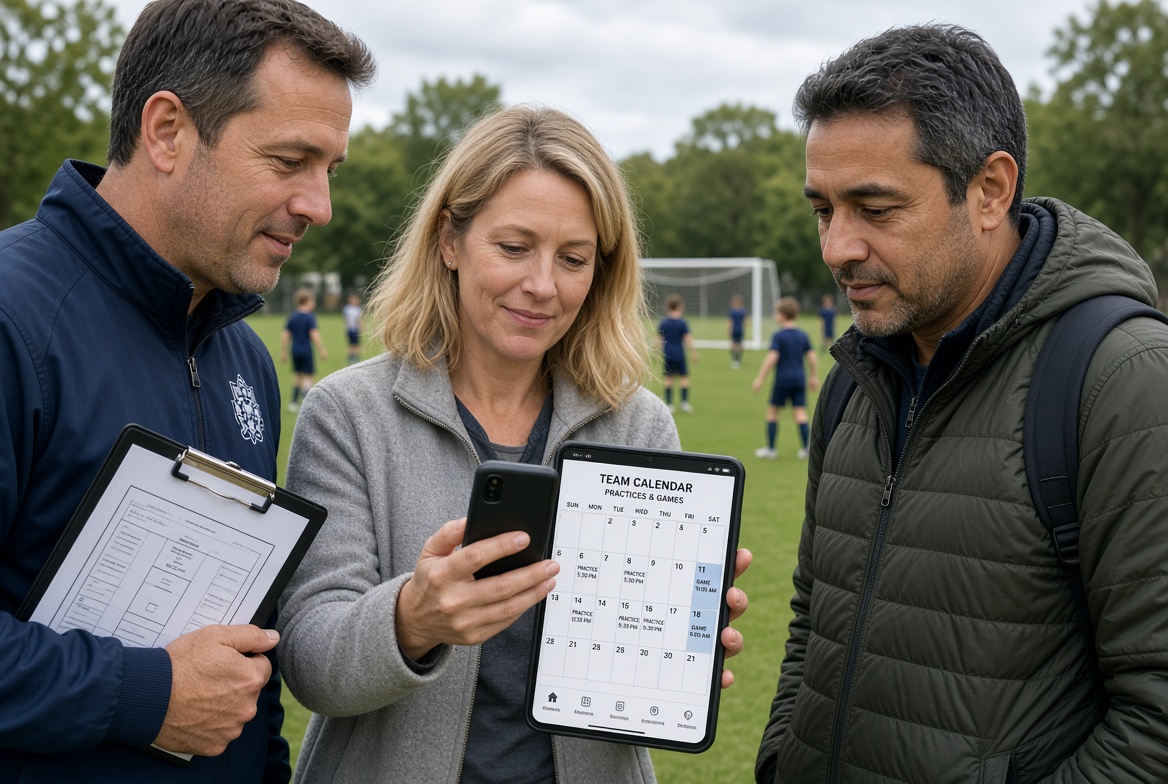
4. Youth sports teams
The coach owns the workspace. Games and practices are events with a field address that opens in Maps. Parents register players. Reminders fire before kickoff. QR codes speed sideline check-in. Friends stays inside the team so rival clubs never see the roster calendar.
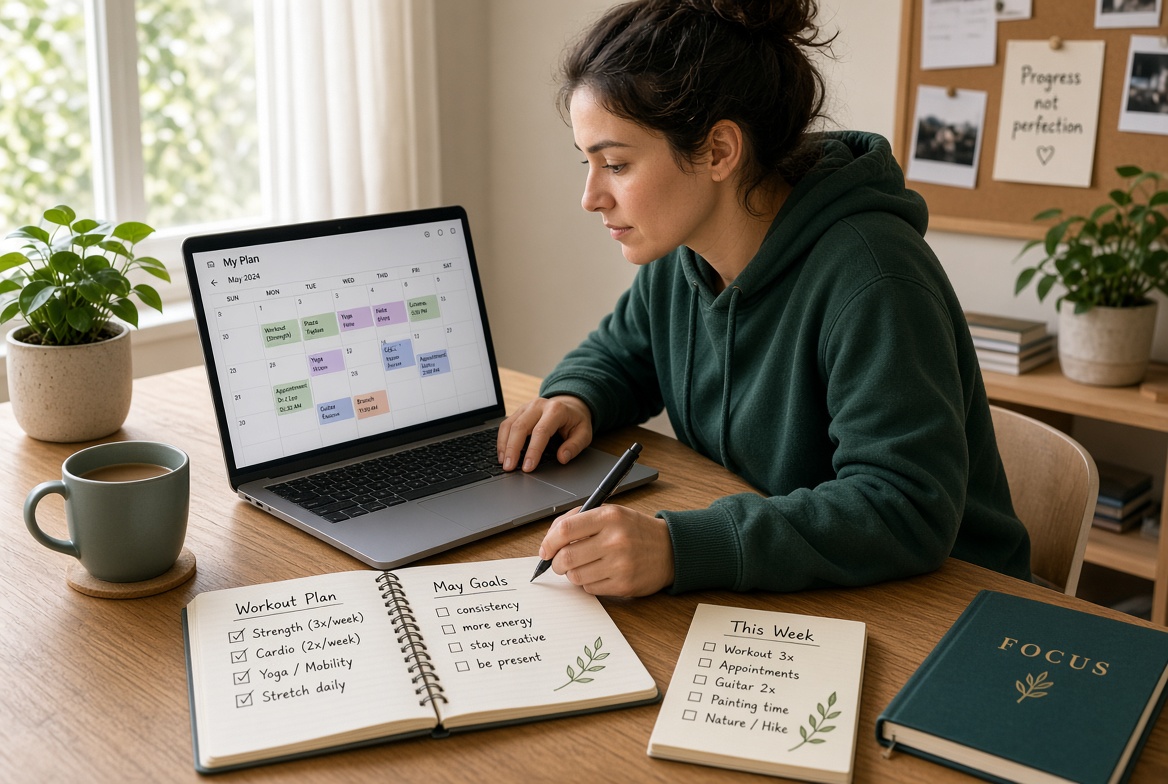
5. Personal planning
A single person uses the app as their own structured calendar: workouts, appointments, hobby sessions. They can still invite a trainer or partner later. Nothing is public unless they flip the share link on.